

Compose resources
Compose is your design partner powered by AI that lives right inside Squarespace.
Every design can be refined through conversation, adjusted with visual controls, or edited in the code editor. Compose applies changes directly to your site. Preview every result, compare versions, and publish with confidence.
Have a SquareKicker subscription?
You already have access to Compose.
Navigate to the top-level SquareKicker menu in Squarespace to open Compose and start exploring your boldest ideas.
No subscription?
Start a free trial! It’s easy to get started with SquareKicker. Create an account, connect to your website, and install SquareKicker with just a few clicks. From there, you can start designing with Compose and explore all 100+ Extension tools. Read more about getting started with SquareKicker.
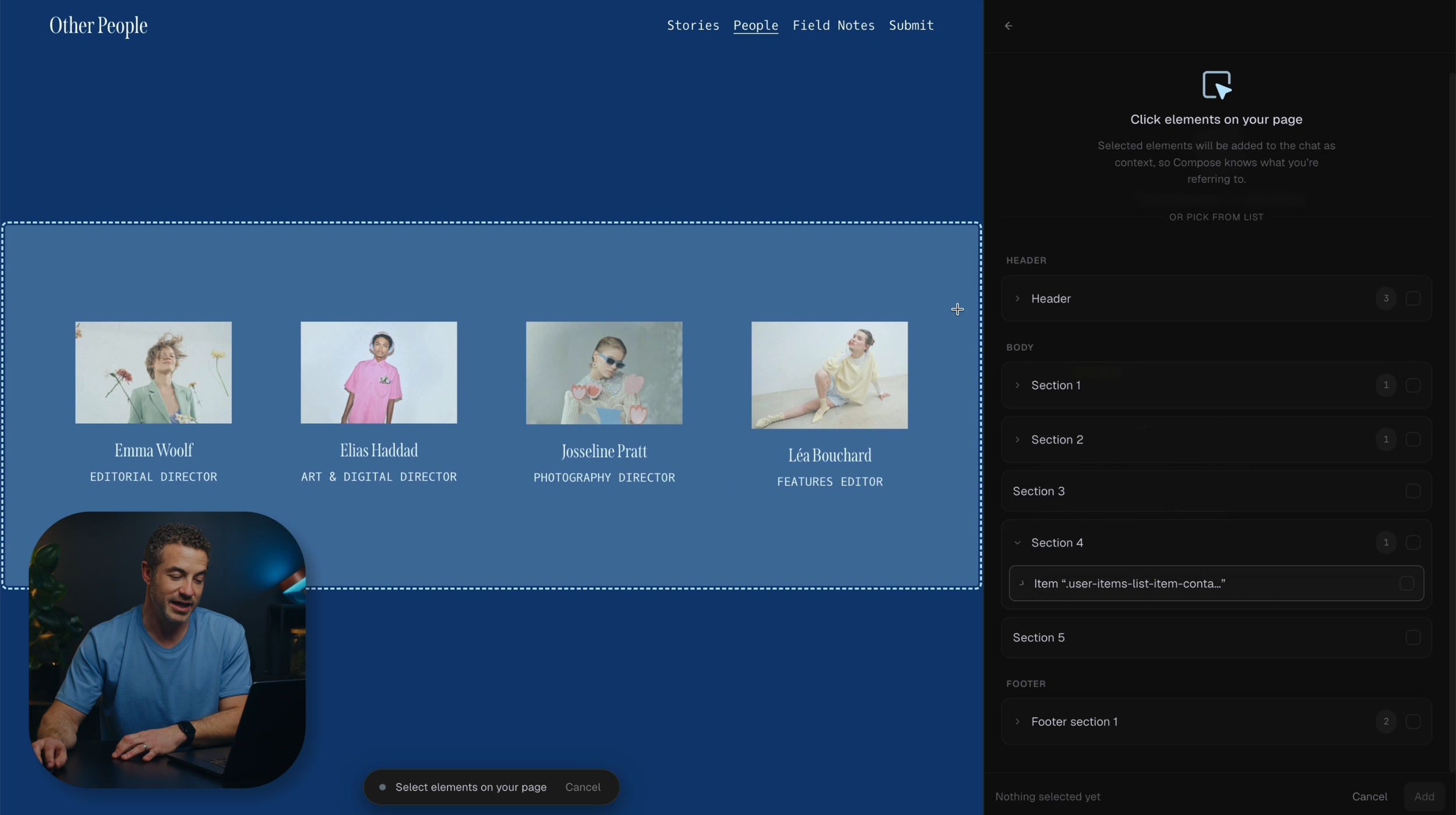
Add context
Select existing elements on your page to include them as context in your design.
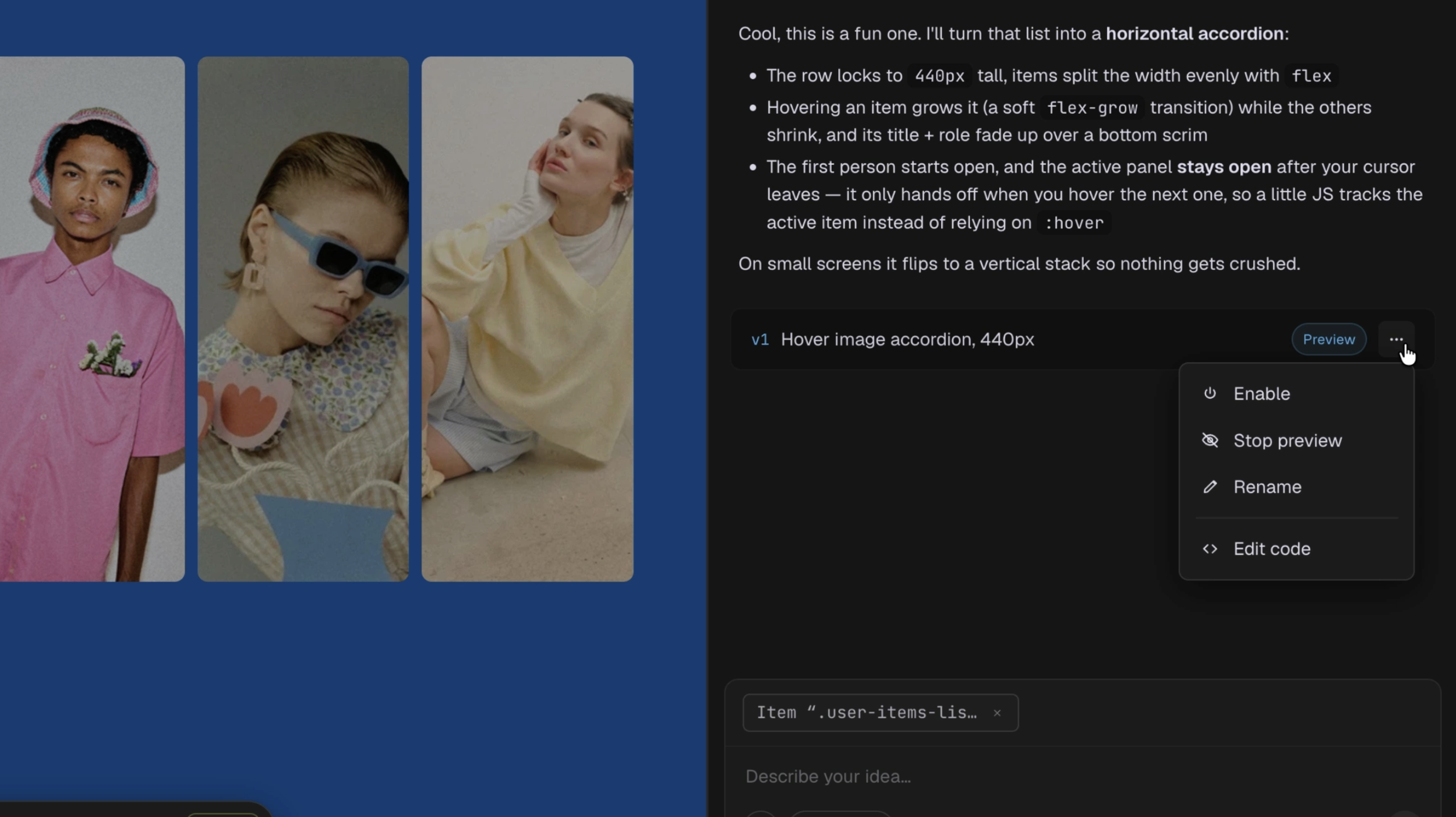
Preview
Preview every design result on your page and apply to your site with a one-click toggle.
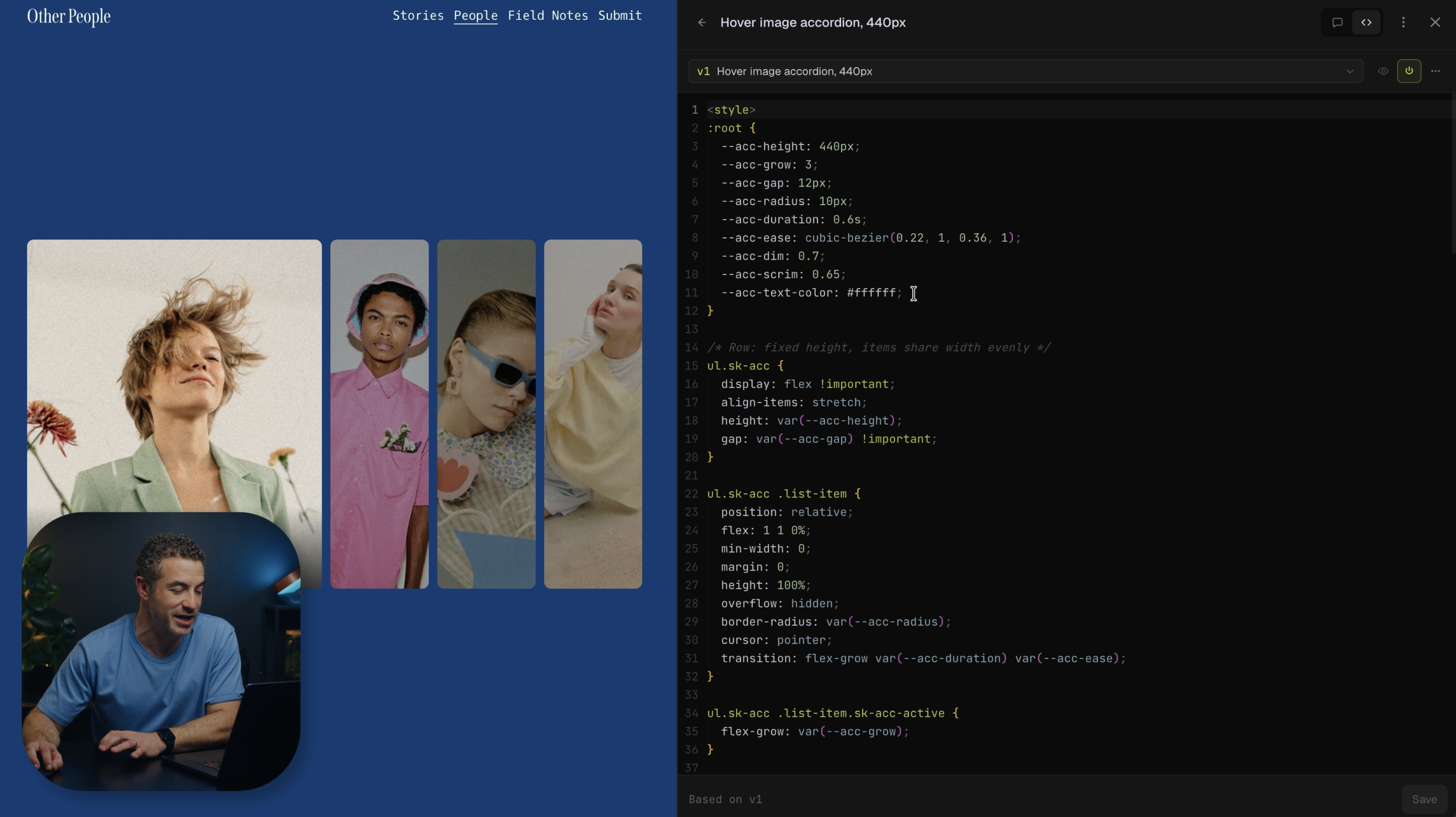
Code editor
The Compose code editor lets you view and edit the code created for each version of your design.
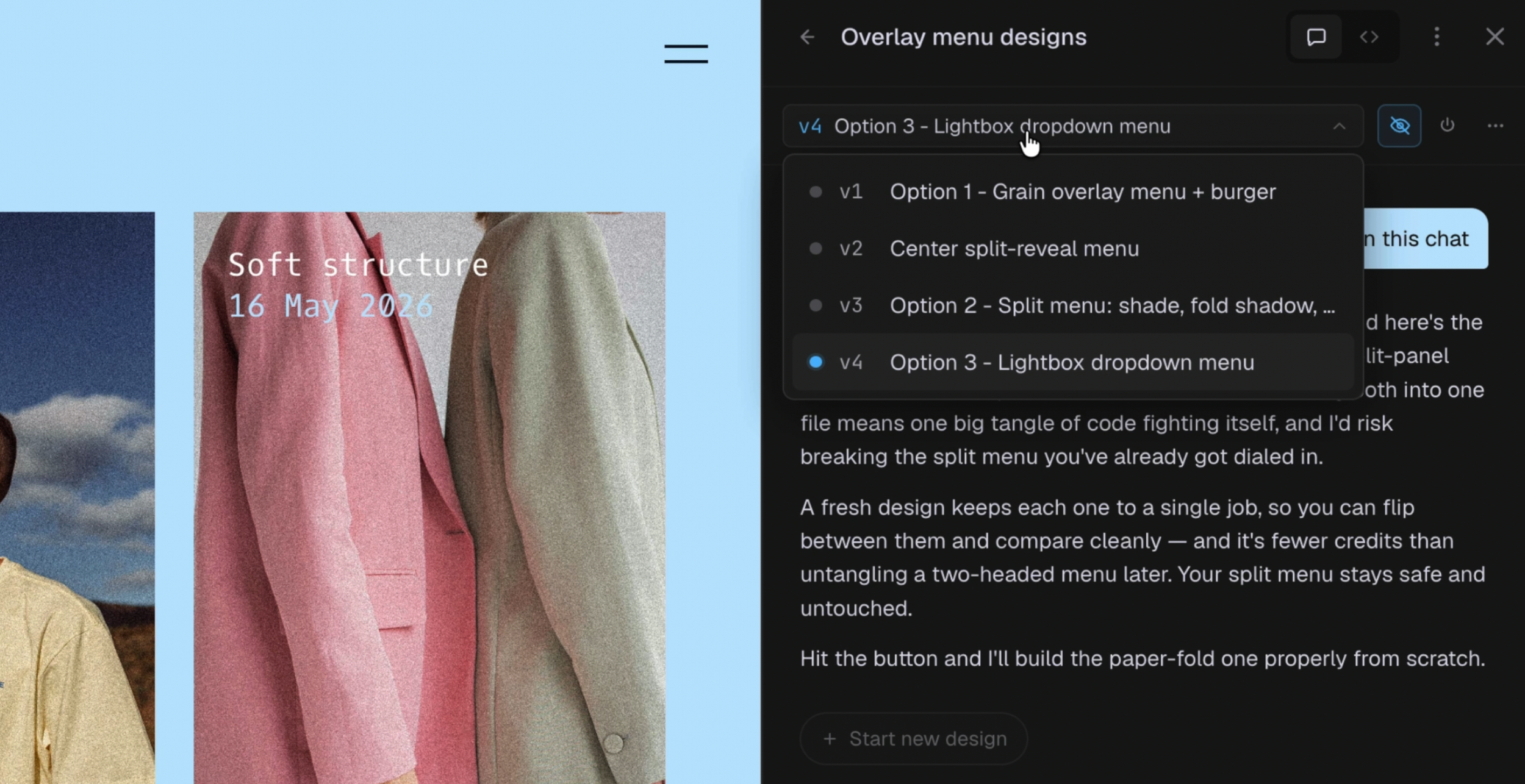
Versions
Each prompt or code edit generates a new version of your design. Preview or design from any version. All versions are saved on the SquareKicker server.
Take control of the details
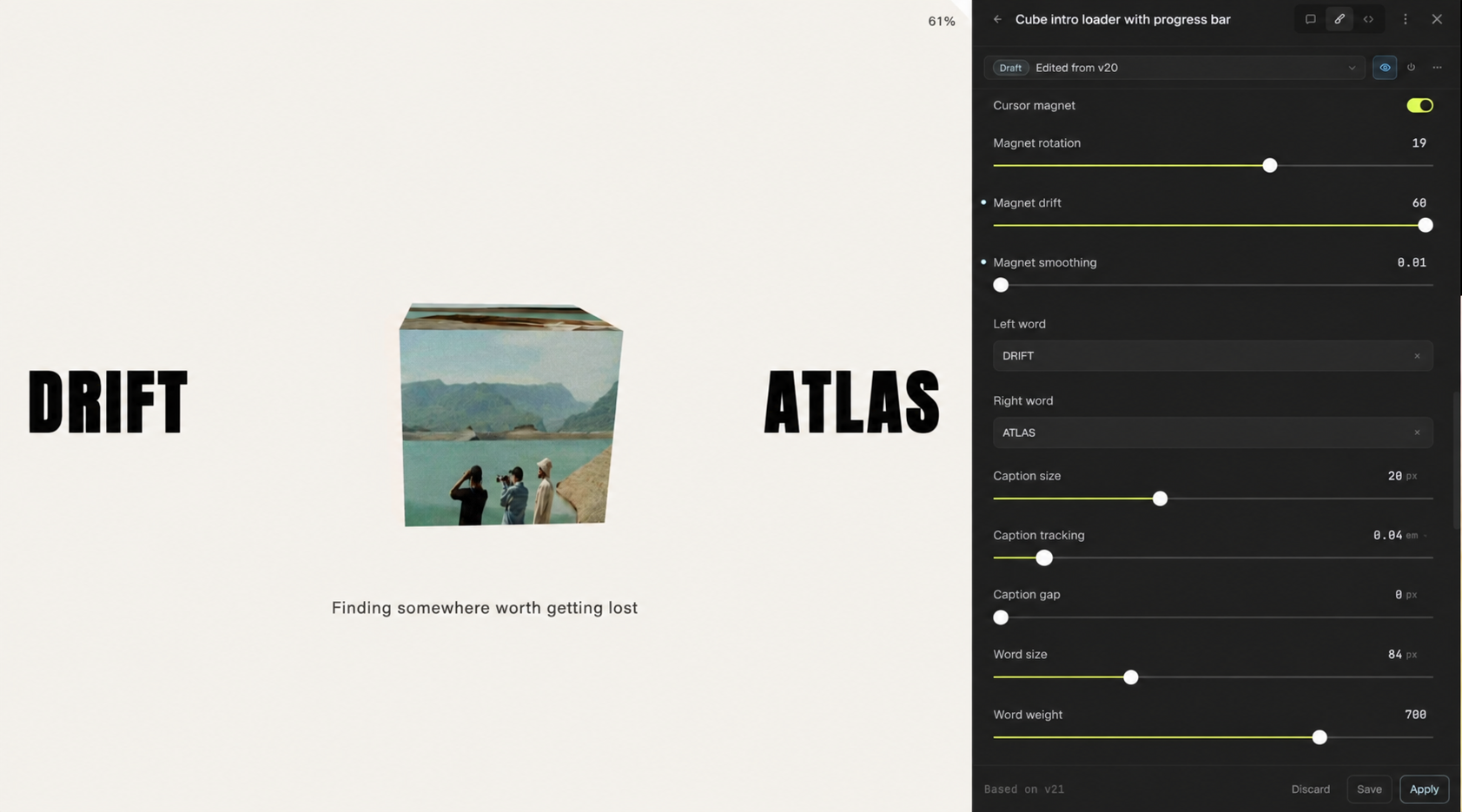
Each Compose generation comes with its own set of controls, giving you direct access to adjust every design detail.
Add images
Add images to your design from your Squarespace Asset library right inside Compose. You can also upload images as a visual reference for further context.

Global styles, start from code, background generation
Three more handy things Compose can do.

Frequently asked questions
-
You can select the relevant section, block, image, heading, or other page element before writing your prompt, simply by clicking parts of your page. This adds the element as context, so Compose knows exactly what you are referring to.
You can select multiple elements and add more context as the design develops. Compose can also identify an element from your description, i.e., “My hero section” or “all the buttons on this page”, but selecting it manually is the most reliable option when placement matters.
-
Start by describing what you want to create or change, where it should appear, and how it should look or behave.
You can also upload a reference image to help guide the design. We have seen great results when users create a flat version of their idea in Canva or Photoshop, then ask Compose to recreate it in Squarespace.
Your first prompt does not need to be perfect. You can continue refining the result through conversation and controls.
-
Compose understands the existing colors, fonts, and design variables used by your Squarespace website. Unless you give it different instructions, it will generally try to create something that fits with your current site.
You can also provide more direction by asking it to use a particular site color theme, typography style, or visual treatment.
-
Yes. Compose is designed to work as an ongoing conversation rather than a one-time prompt.
Each successful change creates a new version, so your earlier work is not lost.
You can ask it to adjust an animation, improve mobile behavior, remove part of an effect, or add more functionality. If you want to adjust the styling of a design or add or edit the content, using controls is the most effective way to do this. Adjusting your design with controls does not use any credits.However, the more detail you can add to your prompts, especially the first one, the better Compose will be able to understand what you really want. If you are not sure, try asking Compose to ask you follow-up questions or ask Compose to report back a detailed summary of what is about to be built before Compose actually continues.
-
A design is the overall project you are working on, such as an interactive image card, custom menu, or page transition.
Best practice is to create a new design in a new conversation for each separate piece of work. This keeps the context fresh, helping Compose deliver better results while using credits more efficiently.
Each time Compose creates or updates a design, it saves the result as a new version. This lets you experiment, compare different ideas, and return to an earlier result without creating a separate design each time.
-
Previewing temporarily displays a version on your website so you can test it in context. It has not yet been added to the live website and no code has been added to your site.
Applying a version makes it active on the website. Only the code of the applied version will be added to your site. All other versions are saved on the SquareKicker server. The applied version will remain active until you apply another version or disable the design.
-
No. A preview is only shown to you in your browser while you are working in Compose.
Website visitors will not see the design until you select Apply and make that version active on the live website.
-
Yes. You can preview earlier versions and compare them without changing the version that is currently applied to your website. You can quickly preview any version by clicking on the title, which makes it easy to compare several options, or show your clients a range of designs.
You can also restore a design to an earlier version. Restoring a version duplicates the older version and adds this as the newest version. This allows you to continue designing from a previous version, while preserving the conversation and all existing versions.
-
An image selected from your Squarespace Asset library can be used as part of the finished design. For example, Compose could place it inside a menu, use it in a hover effect, or include it in an animation.
An uploaded reference image is used as visual guidance. It helps Compose understand the style, layout, or interaction you want, but it is not inserted into the finished design.
-
Check that you have selected the correct page elements and clearly described where the change should happen.
You can then explain what is incorrect and ask Compose to adjust it. You may need to add more context, clarify the intended behavior, or break a complex request into smaller changes. Because each update creates a new version, you can refine the result without losing the earlier one.
-
Compose dynamically selects the AI model used for each request. You do not need to choose a model or understand the differences between them.
The model may be selected based on factors such as the complexity of the request, the capabilities required, and the cost of completing the task. The goal is to provide the best result as efficiently and affordably as possible.
-
Yes. Compose is designed for professional Squarespace designers and can be used to create and manage custom designs on client websites connected to your SquareKicker subscription. With controls you can easily make your Compose designs brand-specific by adjusting all of the detailed styling elements.
-
When a design is applied, its code is saved in the Squarespace code injection area. Disabled versions are not added to the code injection area. SquareKicker also stores a backup of the design and its versions on our servers.
The code added to Squarespace is optimized to be as lightweight and efficient as possible on the live website. The version stored by SquareKicker and displayed in the Compose code editor is formatted to be human-readable and easy to review or edit.
-
Compose is designed to work across Squarespace pages rather than being limited to standard sections and blocks. This includes content on blogs, product pages, Member Areas, and pages using auto layouts.
There are some limitations when content is controlled by another platform or loaded inside a protected iframe. Compose can style the surrounding container, but it cannot change the content inside services such as Acuity Scheduling, Squarespace Scheduling, YouTube, Vimeo, Google Maps, Calendly, Typeform, SoundCloud, or external social feeds.
Some Squarespace-controlled areas, including checkout and certain Member Areas screens, may also limit how reliably custom code can be applied.
-
Every SquareKicker subscription includes a monthly allowance of Compose credits. These credits renew on your subscription date and do not roll over.
Credits are only used when you ask Compose to generate. Previewing or applying a design, viewing code, and editing code in the code editor do not use credits.
If you run out of included credits, you can purchase extra credits that are then available across all subscriptions in your account. These credits expire 12 months after purchase. Your included credits will always be used before your extra credits.You can view your remaining balance in both Compose and the SquareKicker Dashboard. The number of credits required for a request cannot be shown in advance because it depends on factors such as the complexity of the request and the amount of context Compose needs to process.
If you run out of credits during a conversation, you can purchase extra credits and continue without losing your previous work.
Adjusting your design with the generated visual controls does not use any credits. This is a great way to adjust many of the small details of your design like size, color, and position. You can ask Compose to generate a specific control for something you want to fine-tune. -
The Compose code editor lets you view and edit the code created for each version of your design.
If you are comfortable working with code, you can make changes directly in the editor and save them as a new version without overwriting the original.
The code shown in the code editor is formatted to be human-readable and easy to work with. You can also start a new design by adding existing code, then use Compose to continue refining or improving it.
You do not need to use the code editor to work with Compose. It is an optional feature for users who want more visibility or control over the code behind their designs.
-
Yes. Our support team is happy to help you understand why a Compose design may not be working as expected, identify possible conflicts, and guide you through troubleshooting.
However, we may not always be able to resolve issues caused by additional custom CSS or JavaScript, third-party plugins, embedded content, or other code running on the website. Compose gives you a great deal of creative freedom, which also means some designs may be affected by factors outside SquareKicker’s control.
Websites and software also change over time. A Squarespace update, a new design, or later edits to the website may occasionally affect existing customizations. This is a normal part of working with custom code.
We believe in empowering designers and will always do our best to help. Compose can also work with you to investigate problems, adjust the code, and find another way to achieve the result.
