

Interactive Portfolio List with Cursor Preview
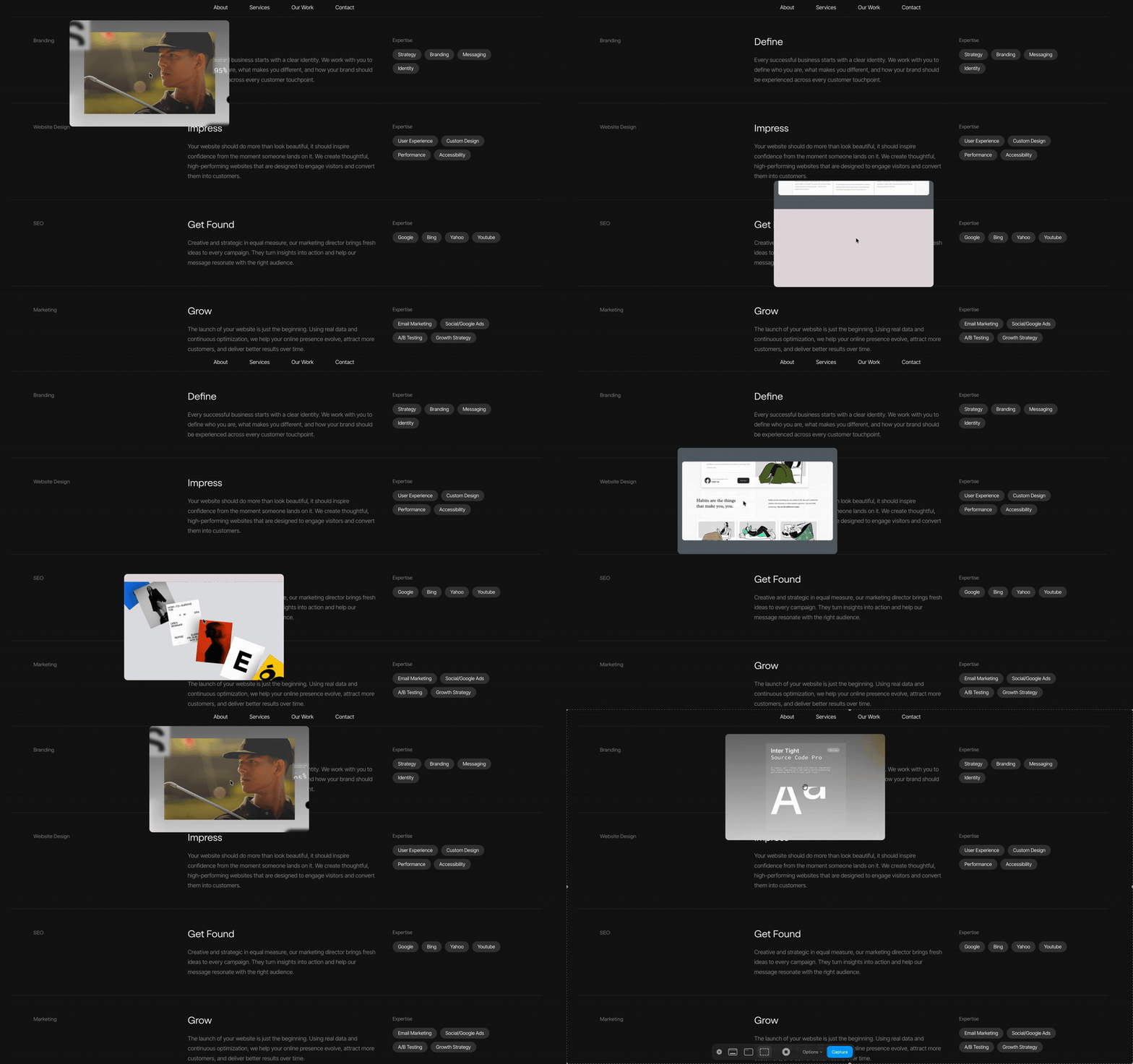
This interactive portfolio transforms a standard Squarespace list into a more visual browsing experience.
Each row contains the project or service title, supporting text and a set of tags, while the layout stays clean and minimal. When a visitor hovers over an item, a floating GIF preview appears near the cursor, giving them an instant visual preview without opening another page.
As the cursor moves between items, the preview updates to match the content being hovered. This creates a portfolio that feels much more interactive while still keeping the main layout simple and easy to scan.
The design was built from a Squarespace Auto Layout List Section. Images, titles, body text and italic descriptions were added to the individual list items description to display tags.
Compose was then used to reinterpret the italic descriptions as visual tags and turn the item images into animated cursor previews.
The original Squarespace content remains the foundation of the section, while Compose controls the custom layout, tag styling, hover behaviour, GIF preview and cursor-following interaction.
This was created from the brilliant mind of Michael at Vative Creative.
Setup your site:

Add an Auto Layout List Section in Squarespace.
Create a list item for each project, service or portfolio entry.
Add an image or GIF to each item.
Add the title and supporting description.
Use the italic description field for the words you want to display as pills.
Select the entire section with Compose.
Starting Prompt:
Rework this list section into a custom portfolio layout.
Hide the image by default and only show it when hovering over an item. The image should appear at the mouse cursor and follow it as it moves.
Lay out each item in 3 horizontal sections:
Left:
- Show the title only
- Left aligned
Middle:
- Show the bold content and the description
- Turn the bold text into an H4 style
- Remove the bold styling
- Keep the regular description text as normal and make it a mid-grey color
- Left aligned
Right:
- Take all italicised text and turn each one into a pill-shaped tag
- Make the pills dark grey with white text
- Left aligned
- Keep each item stacked vertically in the list, but with this 3-column row layout.
Keep the overall design clean, simple and polished. When transitioning from one hover image to another, use a wipe transition. If the user moves from a higher item to a lower item, the next image should wipe in from bottom to top, pushing the previous image away. If the user moves from a lower item to a higher item, reverse the wipe so it goes from top to bottom.
Note: Not all generations will be identical and may require additional prompts.
