

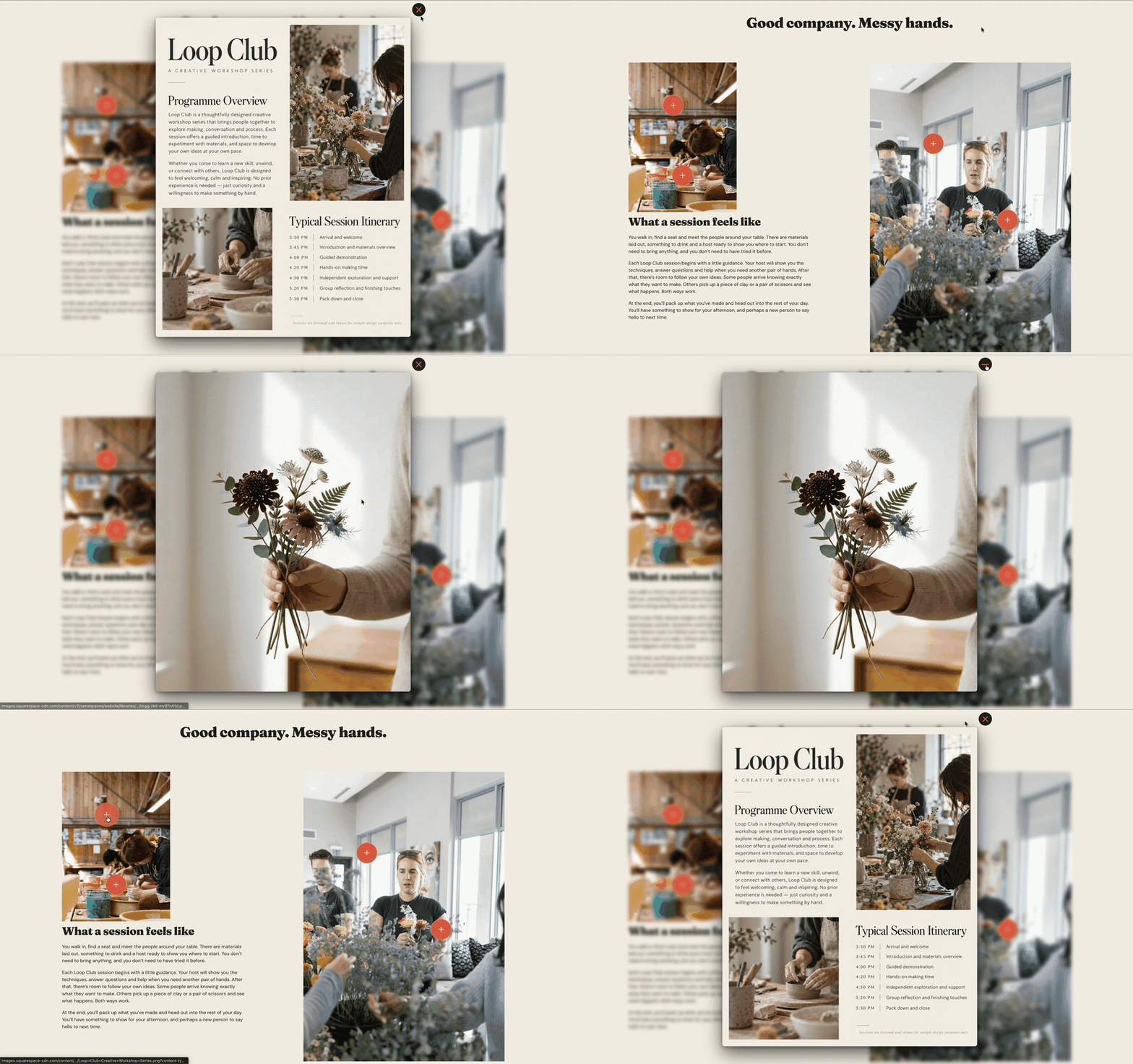
Lightbox Hotspots let you add clickable points over images or layouts that open additional content in a lightbox.
In this example, simple “+” buttons are placed across the design. When clicked, each hotspot opens a larger piece of content while keeping the visitor on the same page.
This works well for portfolios, floor plans, product details, lookbooks, interactive images and anywhere you want visitors to explore more information without leaving the page.
How it works
The hotspots are built using standard Squarespace Button Blocks and the SquareKicker Extension.
Each button is styled as a small circular “+” and has SquareKicker Lightbox enabled. When clicked, the linked content opens inside the lightbox overlay.
Setup
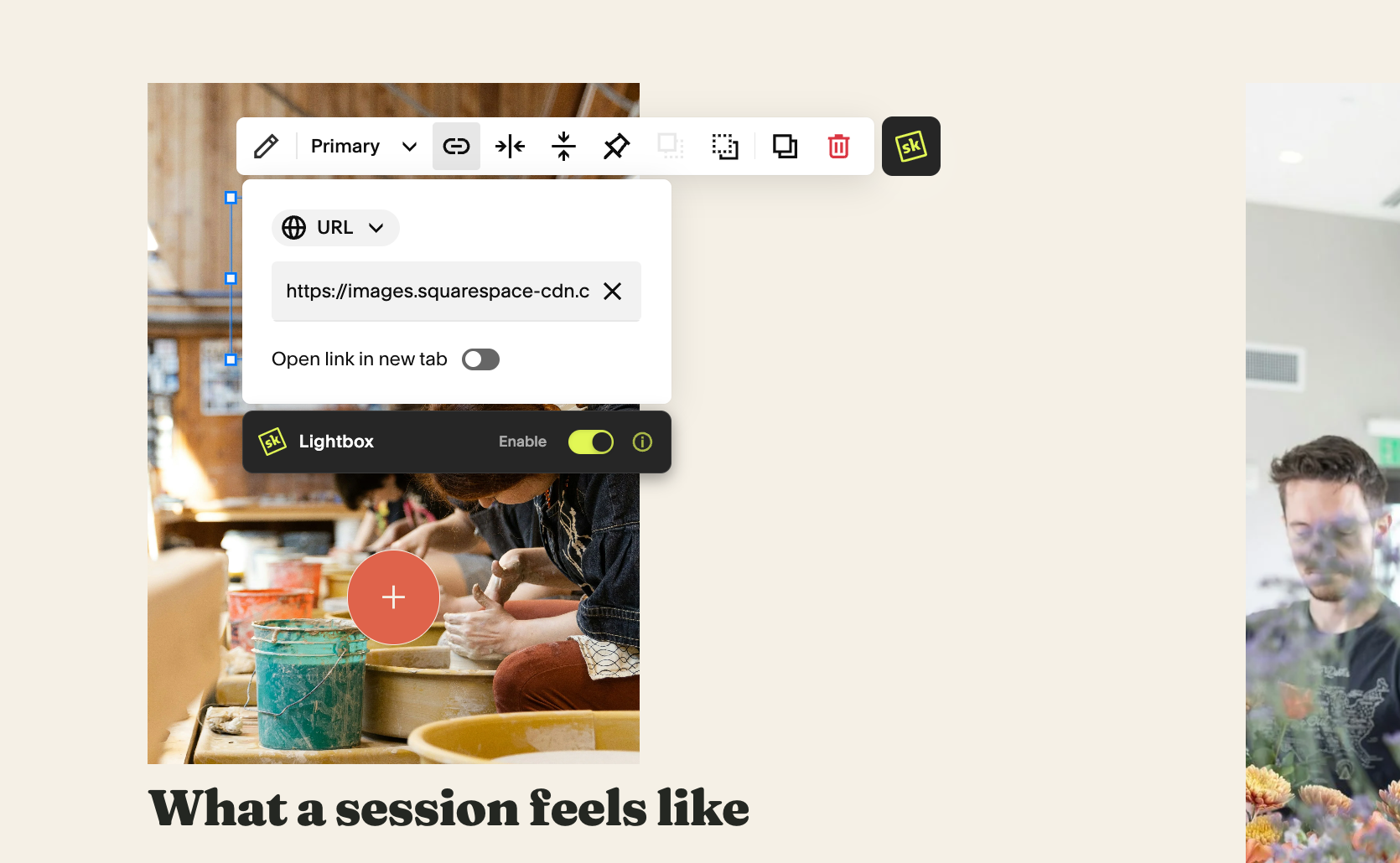
Add a Button Block wherever you want a hotspot and change the button text to “+”.
In SquareKicker:
Enable the Lightbox toggle.
Set the button width to Fit.
Position the button over the part of the design you want to highlight.
You may also need to reduce the Button Padding in Squarespace Site Styles to make the button perfectly round.
Tip: Use SquareKicker Hover Styles to add a subtle scale, colour or movement effect when visitors hover over each hotspot.
Full Tutorial
There are a few extra styling and setup options available with this technique, so watch the full tutorial for a complete walkthrough of how to build and customise Lightbox Hotspots with SquareKicker.
