


This setup turns an internal Squarespace page into a sliding drawer lightbox.
In this example, the drawer contains a form built on a separate page. When opened from another page, SquareKicker displays the linked page inside the lightbox and automatically hides the header and footer, keeping the experience clean and focused.
How it works
Create the content you want to display on its own Squarespace page, then link to that page from anywhere on your site.
You can trigger the drawer from:
buttons
text links
images
other linked elements
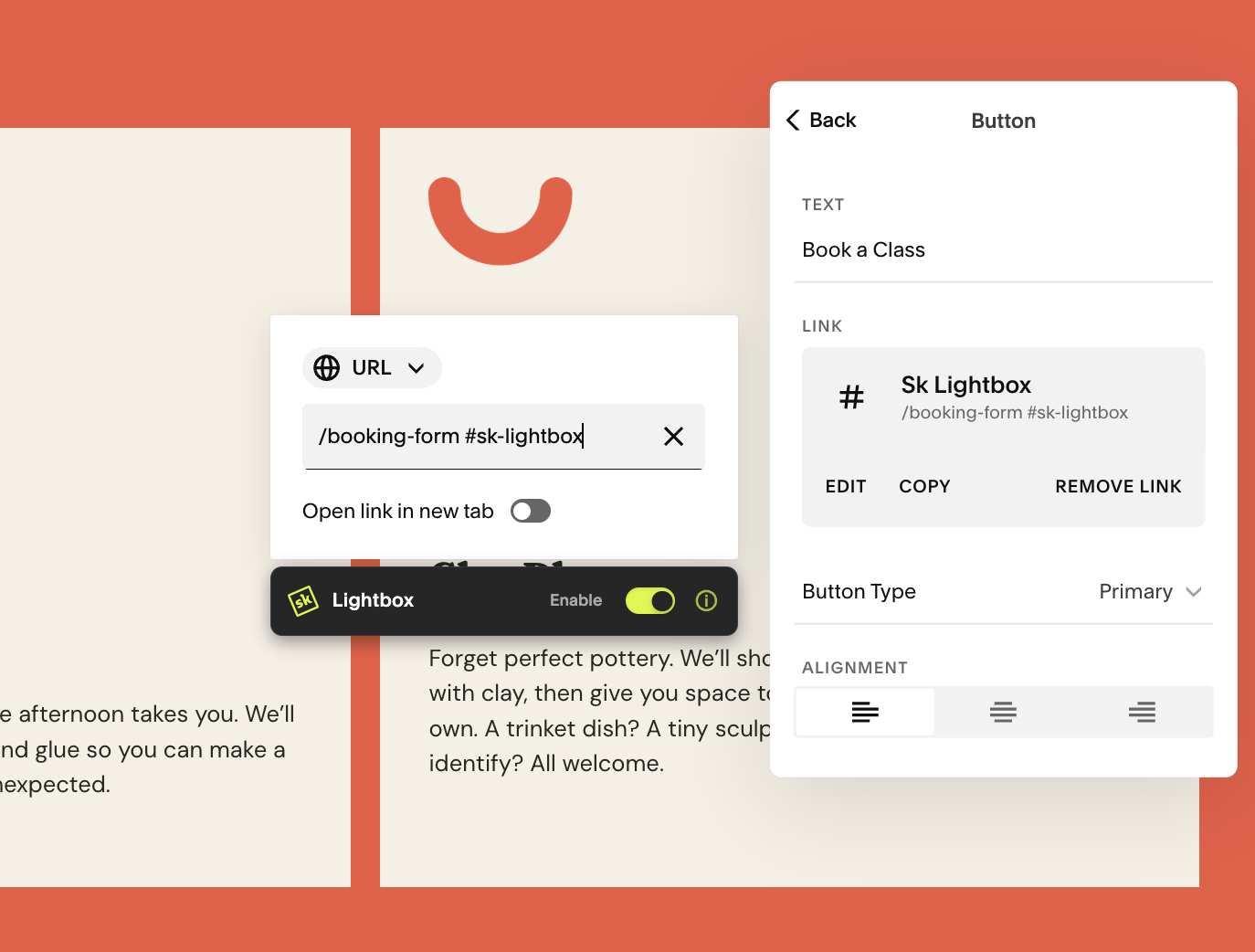
Enable Lightbox on the link, then use SquareKicker Lightbox Settings to style the layout, width, animation and appearance.
Setup
Create a separate Squarespace page for your form or content.
Design the page as you want it to appear inside the drawer.
Add a link to that page anywhere on your site.
Enable the SquareKicker Lightbox toggle on the link.
Style the drawer in Lightbox Settings.
Pro tip: If you’re creating a narrow sliding drawer, style the linked page using the mobile device view so the content is already optimised for the smaller width.
Full Tutorial
Watch the full Lightbox tutorial for the complete setup, styling options and more ways to use internal pages inside SquareKicker Lightbox.
